Terminal
git config --global user.email "githubloginemail"
## replace githubloginemail by your email used to log in to your github account
git config credential.helper storeTo be able to use GitHub functionalities in RStudio, including through the terminal, you need to setup your GitHub credentials within the RStudio terminal.
Make sure GitHub Desktop is installed, then in RStudio
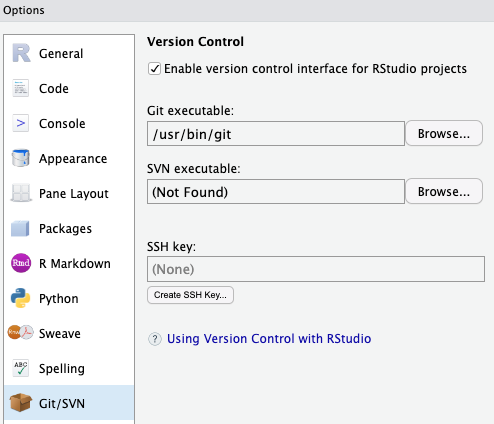
go to Tools > Global Options > Git/SVN and fill in the Git executable field with the location of your git executable (git.exe for Windows users)
 Create a repo
Log on to GitHub.com and access your personal settings:
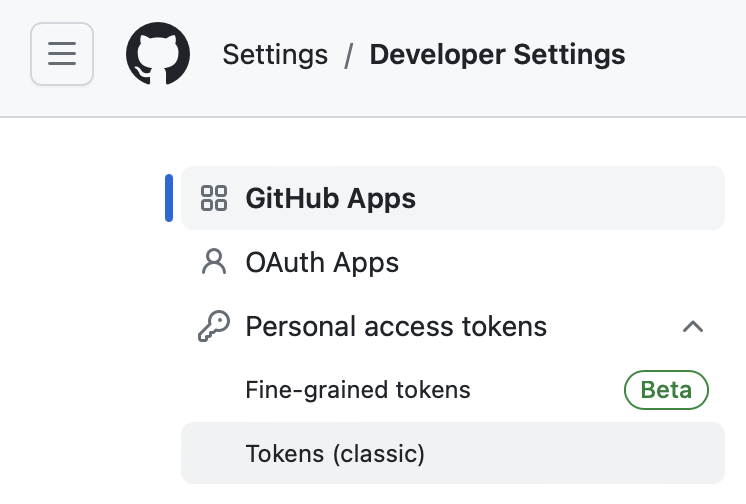
Go to developer settings
Select “Tokens (classic)” under “Personal access tokens”
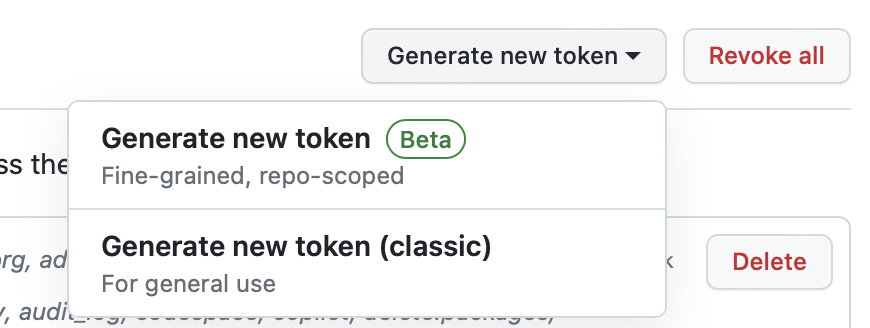
Then Select “Generate new token (classic)
Fill in the different elements :
RStudio tokenadmin:gpg_key and admin:ssh_signing_keyClick on generate token and the following message will appear :
For example only: the token generated here is in the green line : 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
Copy and save your generated code somewhere safe.
In the terminal (ie NOT the console)
Terminal
git config --global user.email "githubloginemail"
## replace githubloginemail by your email used to log in to your github account
git config credential.helper store