1 Github basics
1.1 Difference between Git and Github
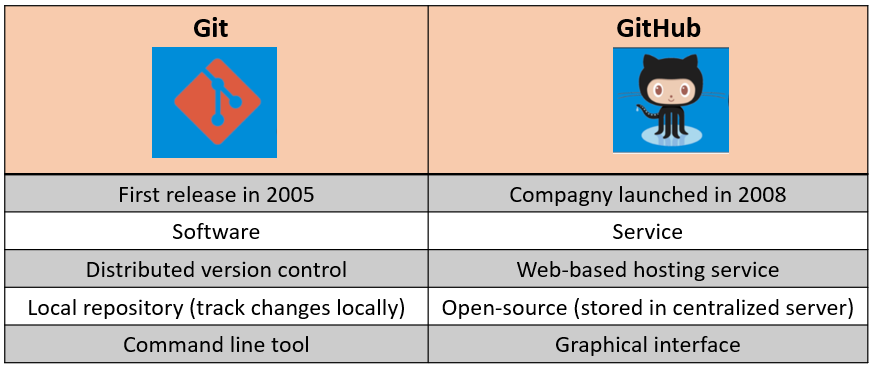 How to integrate Git with GitHub ?
1.2 Clone a repository
- Accept the email invitation to the Github repository
r params$githubrepo
- Clone the repository
r params$githubrepolocally in Github desktop
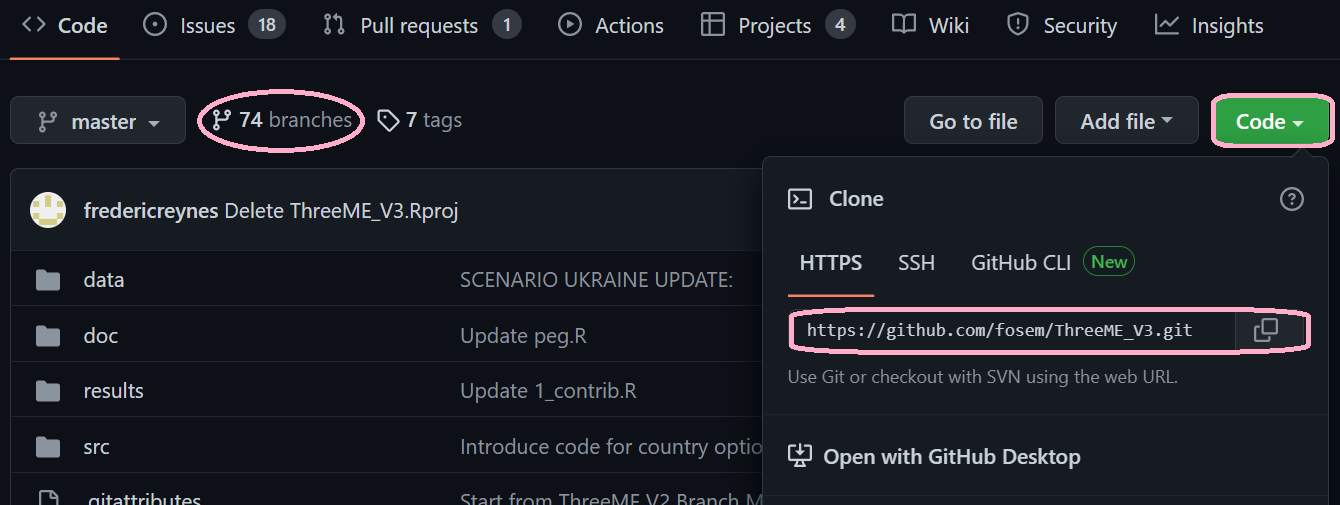
- On GitHub.com, navigate to the main page of the repository
- Above the list of files, click Code
- Copy the URL for the repository
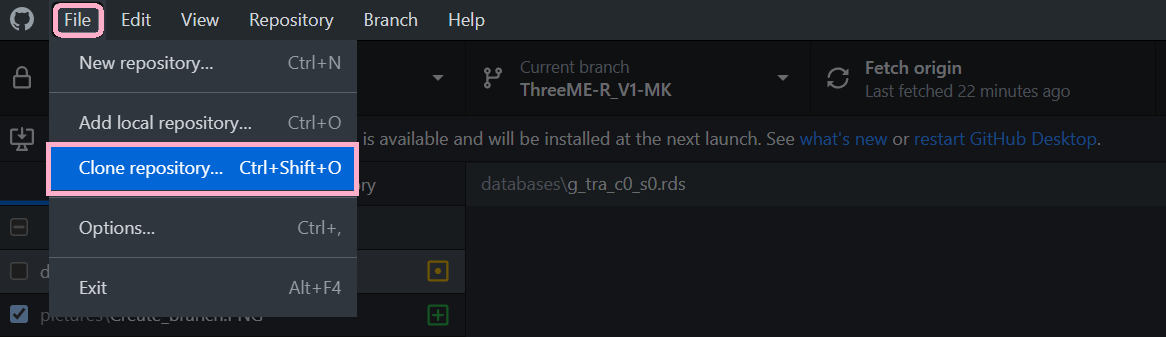
- In Githhub desktop, click on file, clone a repository
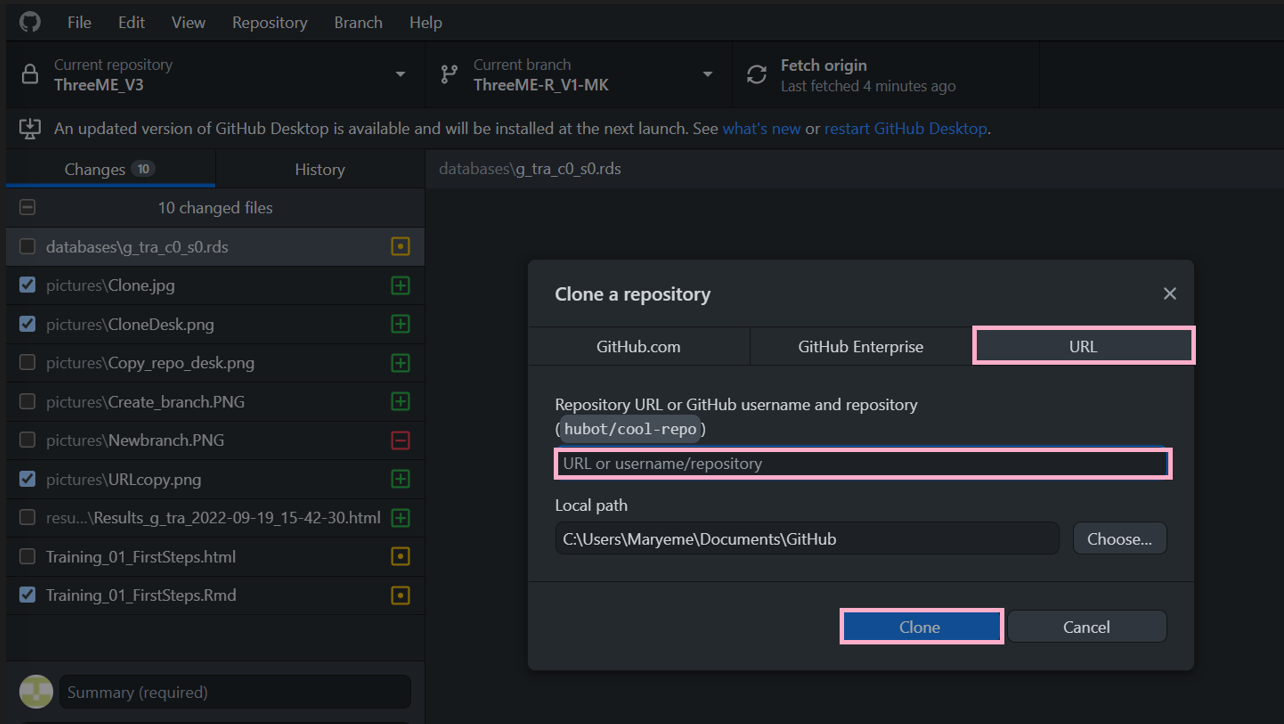
- Past the URL path and clone
1.3 Create a branch from Github desktop
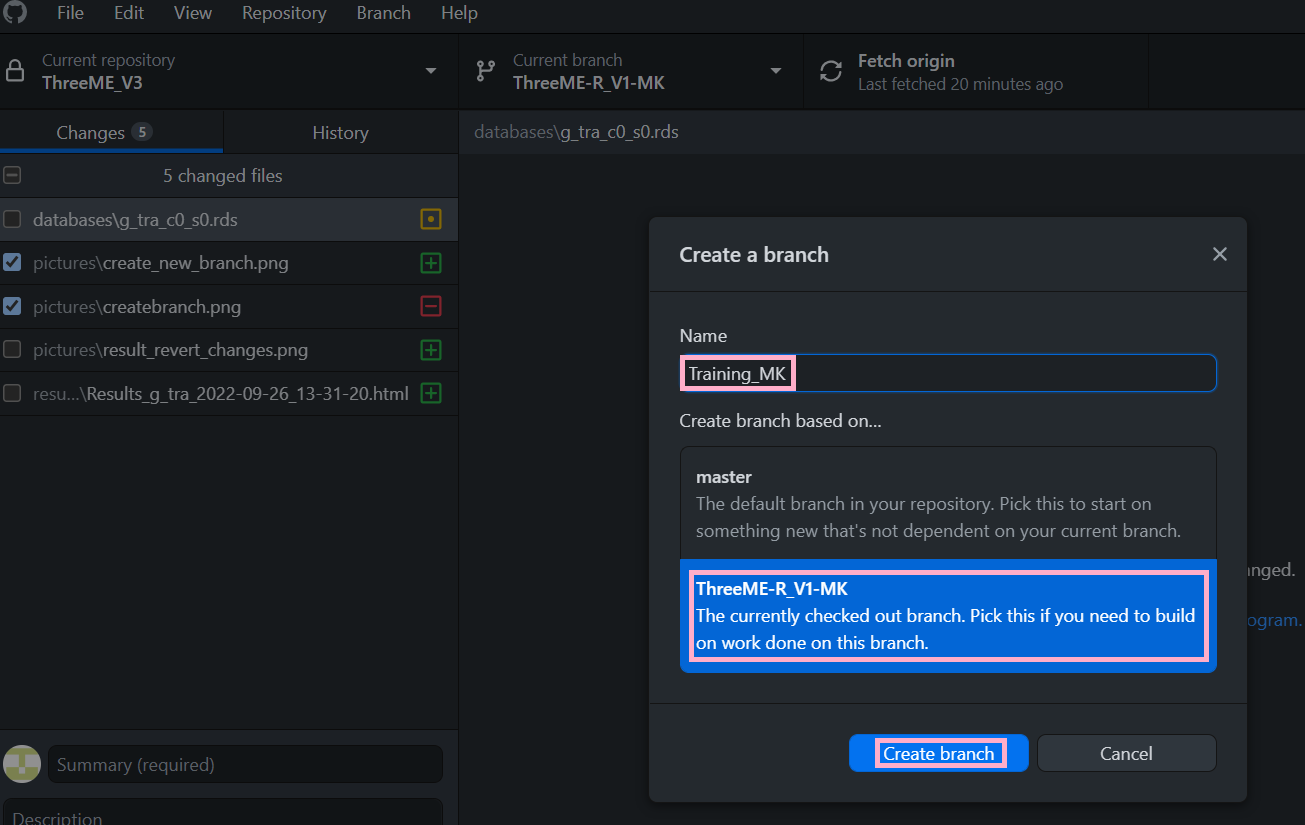
- Create a new branch named
"Training_Git"
- On GitHub desktop select Branch, then Create a new branch
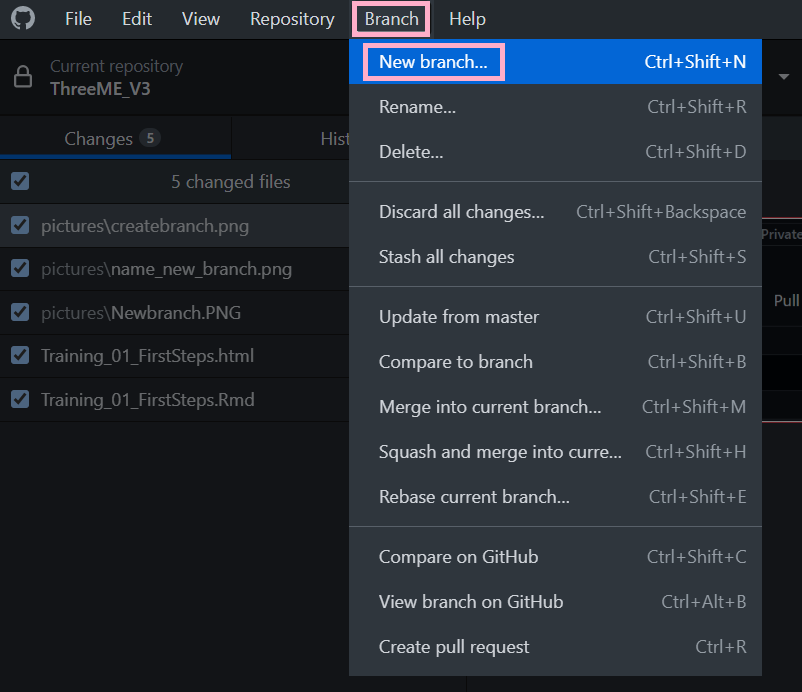
- Give a name to your new branch
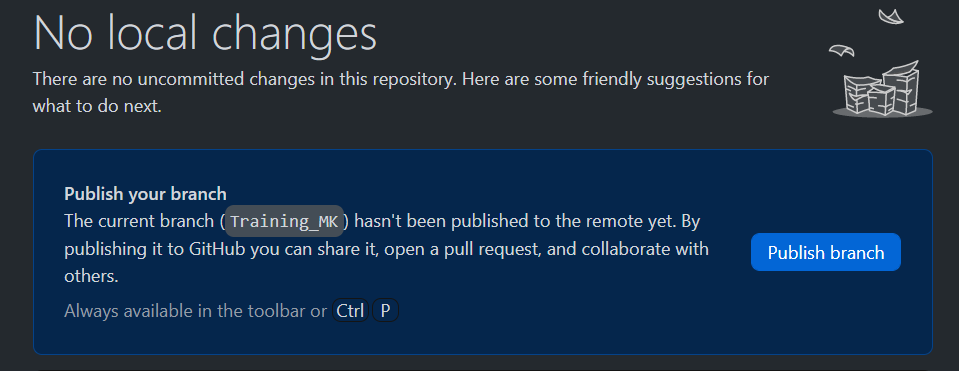
 3. You can publish your branch
1.4 Changes with no "commit"
Fill a file :
- Create a test file named
Git_test, write “this is a test” and save the file - In Github desktop, at the left top of your window in
"Changes"click on your fileGit_test. You can see what you just added on the right side of your window in green.

1.5 Changes with no "commit"
Make a change :
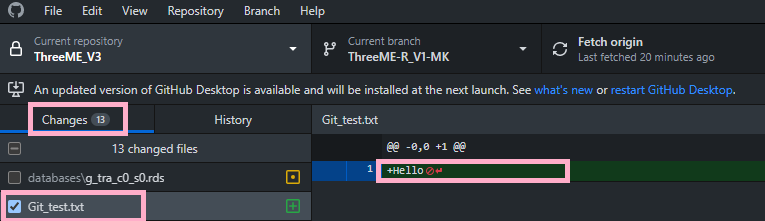
- Open your text file
Git_test, delete “this is a test” and write “Hello” then save. In Github desktop, you can see the change in green.
1.6 Changes with no "commit"
Discard changes :
- In Github desktop, at the left top of your window, right click on your file
Git_testand select"Discard changes". The fileGit_testis no more in"Changes".
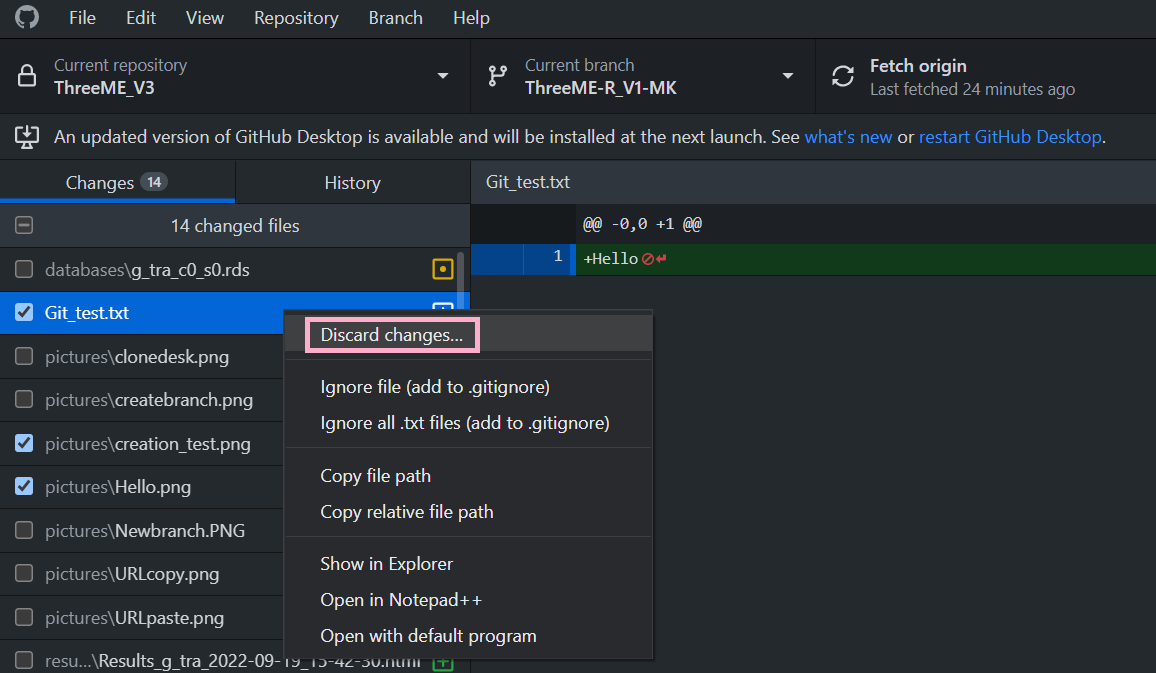
1.7 Changes with "commit"
Commit:
- Create again your text file
Git_testwrite again “this is a test” and save. In Github desktop, at the left top of your window, select your fileGit_testthen at the left bottom of your window click on"Commit to Training_Initials".
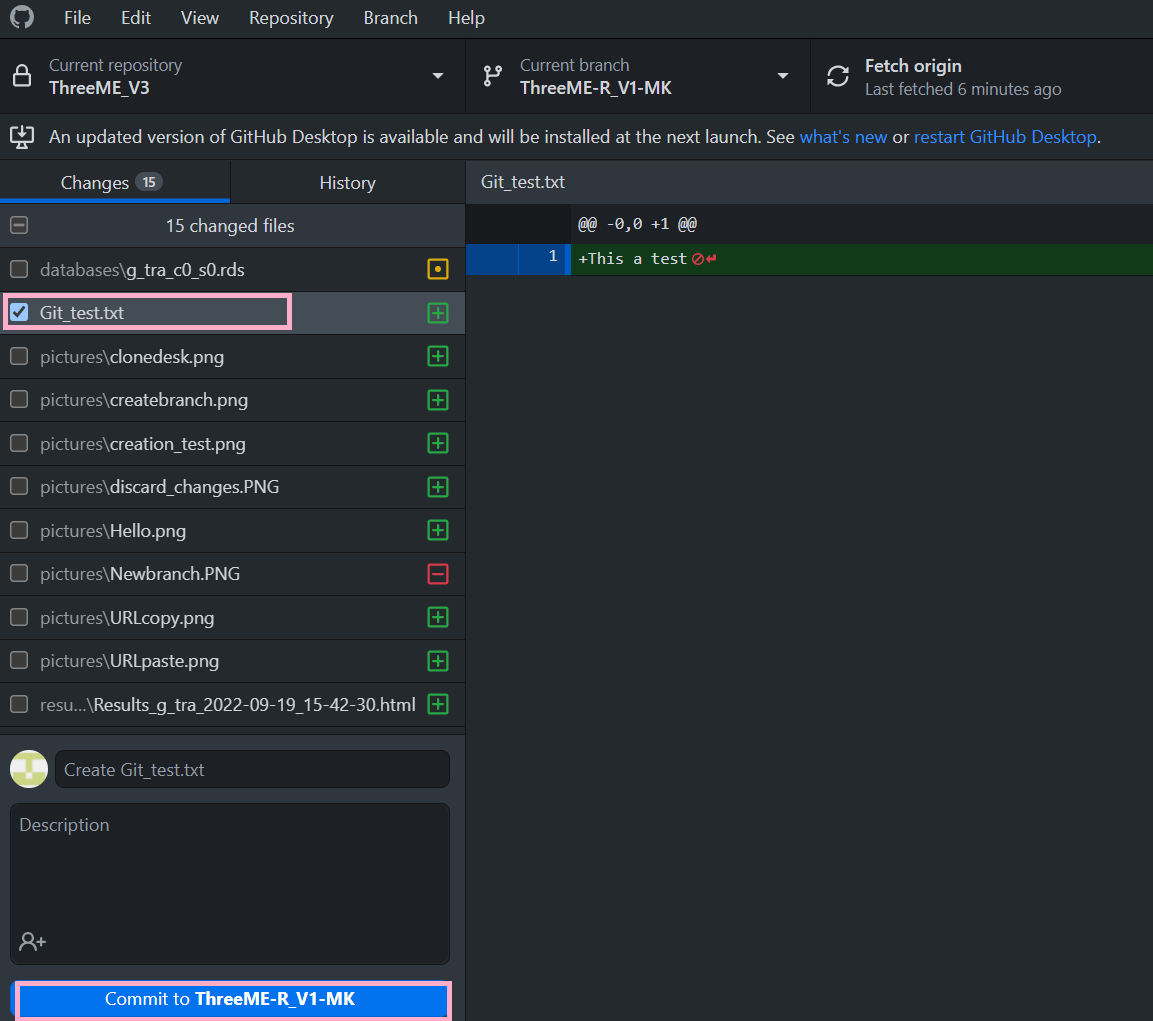
1.8 Changes with "commit"
Push:
The tracking of the changes made in your file Git_test moves from "Changes" to "History". (An arrow going upwards appears above the changes description next to text "Push origin".)
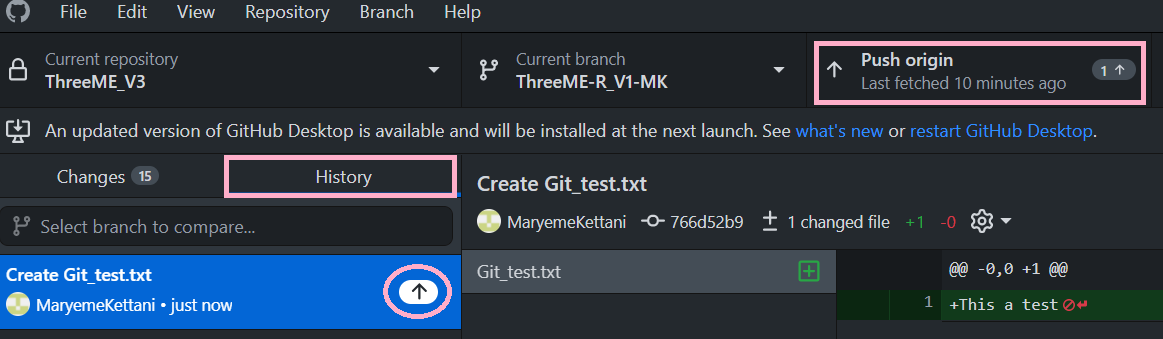
1.9 Changes with no "commit"
Undo a commit :
- In Github desktop, go to “history”, select your text file
Git_test, right click and select"Undo commit". The file is no more in"History"but you find it in"Changes".
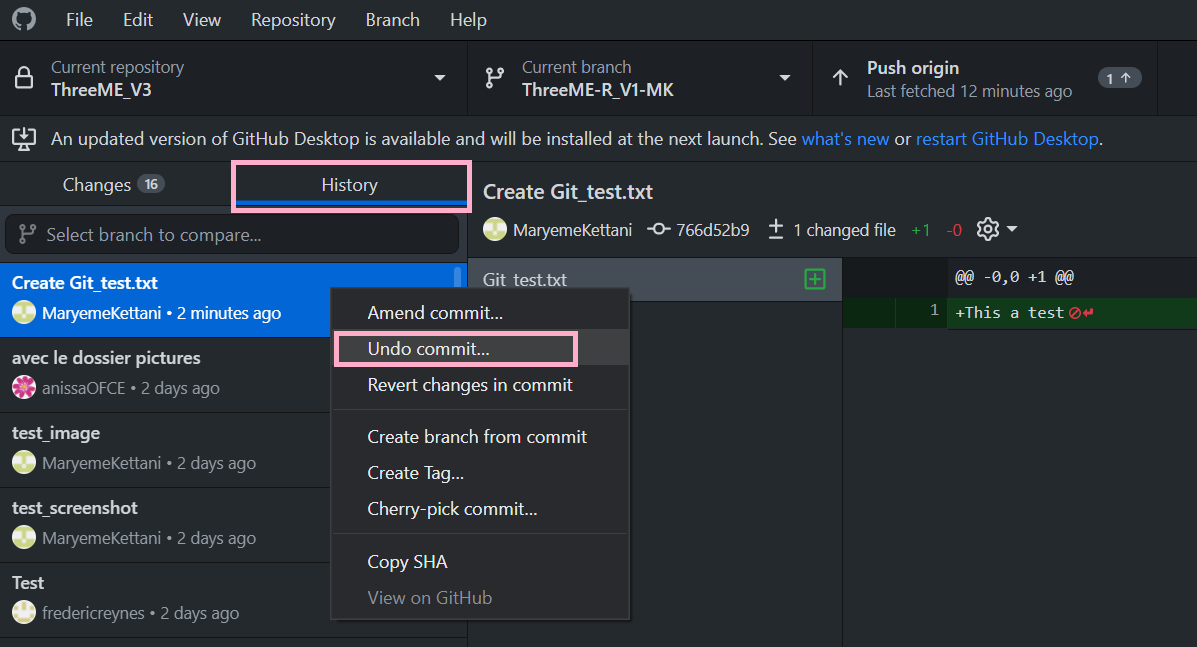
1.10 Changes with no "commit"
Revert changes :
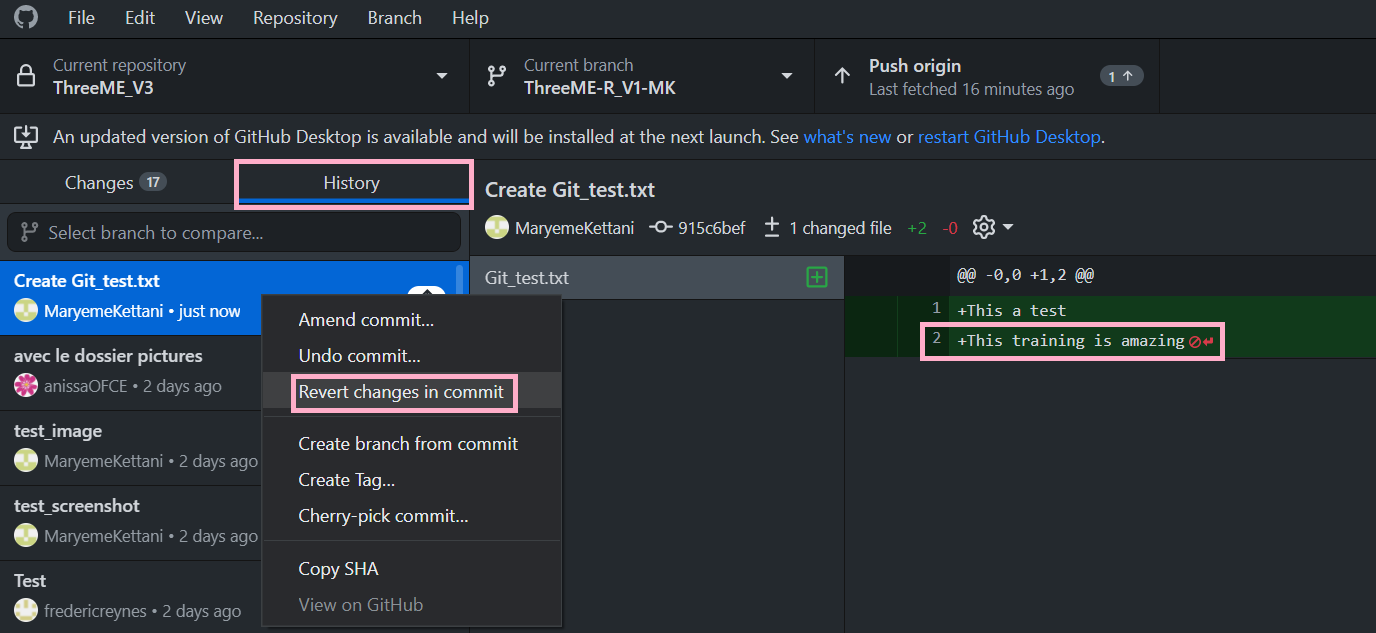
- Come back to your text file, and add for example “this training is amazing”, save then click on
"Commit to Training_Initials"
- In Github desktop, at the left top of your window in
"History", right click on your fileGit_testand select"Revert changes in commit"and look at the changes.
1.11 Difference between "Pull (origin)" and "Fetch"
You and your teammate work on the same branch and your teammate does a
"Commit"and a"Push (origin)"of the commit to the repository in the server. In your local repository, you don’t have these changes. To retrieve them, you can do a"Pull (origin)". If you and your teammates make modifications on the same file, you may have to solve"Conflicts". (you solve the conflict manually or choose the version you would like to keep).If you and each of your teammate create their own branch. Your teammate does a
"Commit"and makes a"Push"of his branch to the repository in the sever. If you want to see your teammate’s code, you need to go to his branch, then do a"Pull".If you do not see his branch (because it has just been created), you first need to do a
"Fetch"to retrieve your teammate’s branch.
1.12 Github glossary
Name <- c(“Branch”, “Clone”, “Commit”, “Discard hanges”, “Fetch”, “Git”, “Merge”, “Merge conflicts”, “Pull”, “Push”, “Revert changes in commit”) Description <- c(“Parallel version of a repository”, “Copy of a repository on your computer instead of on a server”, “Records changes to one or more files in your branch”, “If you have uncommitted changes that you don’t want to keep, you can discard the changes. This will remove the changes from the files on your computer”, “Brings your local copy of the remote repository up to date”, “Stores snapshots of a repo at different points and then creates a timeline history”, “Takes the changes from one branch and applies them into another”, “Happens when people make different changes to the same line of the same file. The merge conflict must be resolved before you can merge the branches.”, “Retreives commited changes from the remote repository to your local branch”, “Sends your committed changes to a remote repository on GitHub.com”, “Inverts the changes of a specified commit as a new commit”) Table <- data.frame(x = Name, y = Description) knitr::kable (Table, “pipe”, align = c(“l”, “l”))