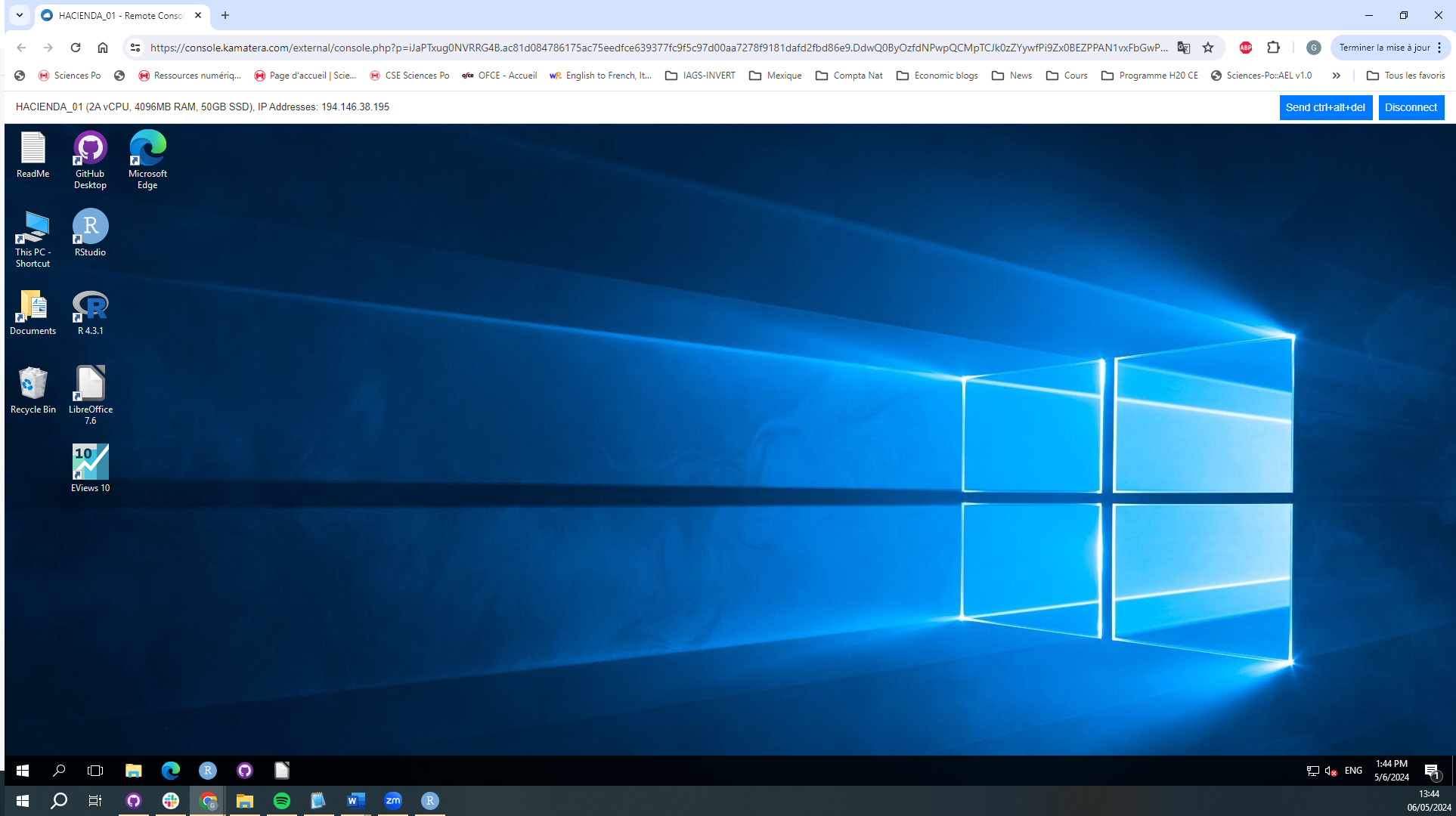
1 Kamatera firts connection
Accept the email invitation received by Kamatera to create an account: Operation to be carried out only once for the creation of the Kamatera account
Them login in: https://console.kamatera.com/login
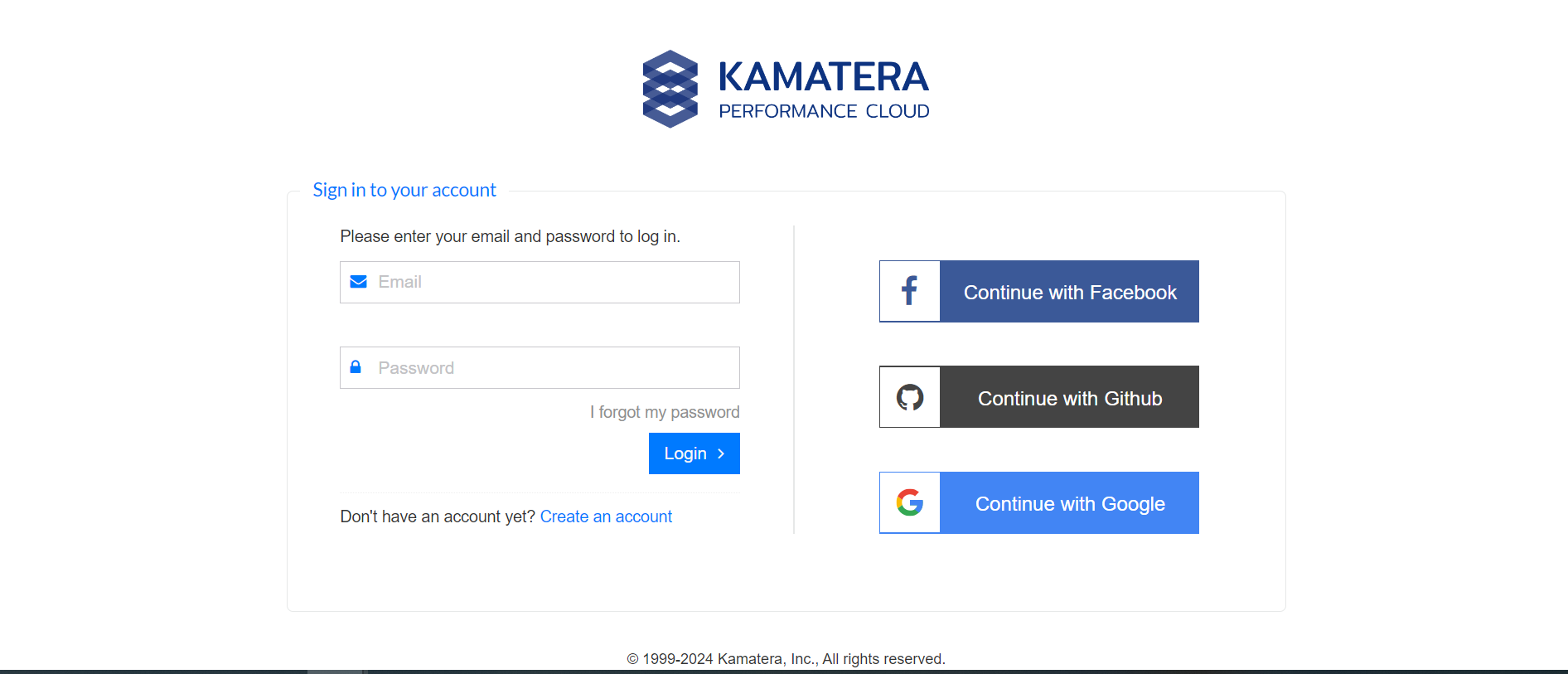
2 How to use Kamatera server?
2.1 Log in to Kamatera with your account:
https://console.kamatera.com/login
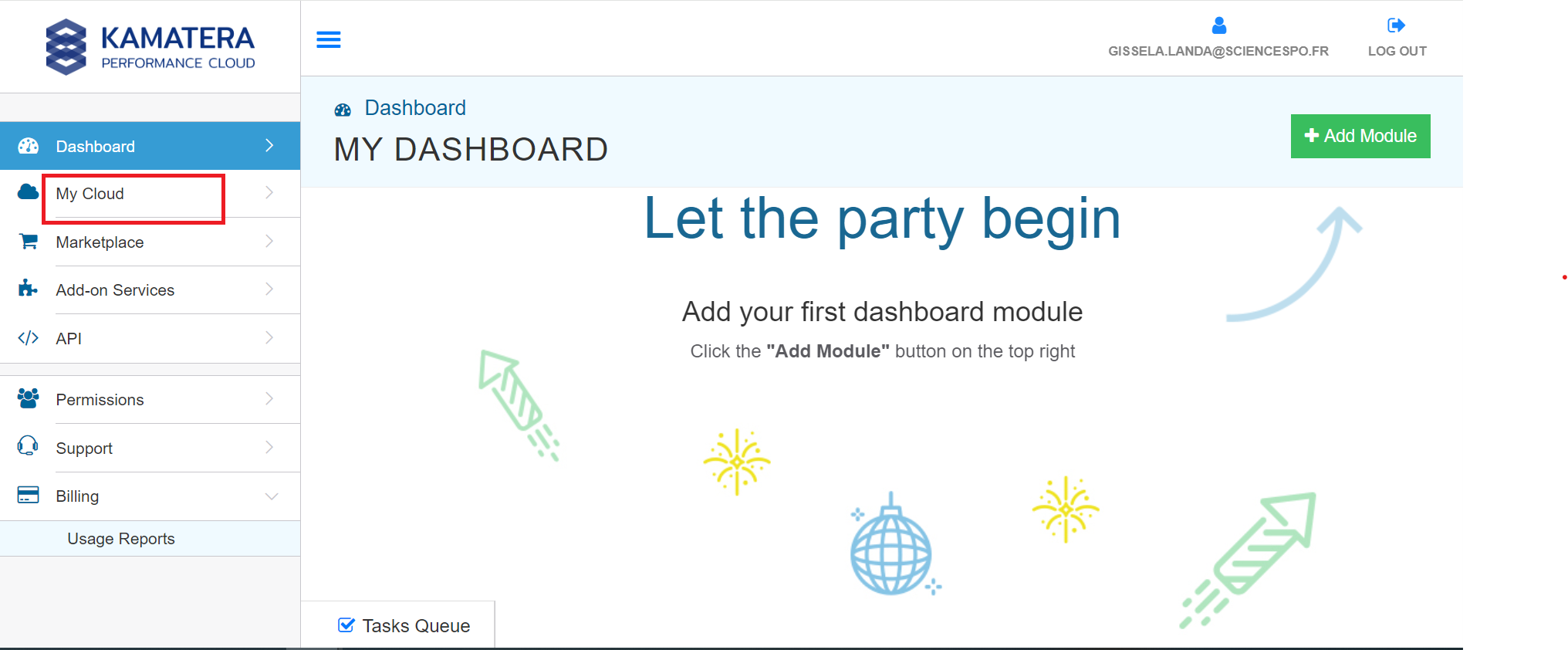
- There are Three servers for the Mexican project
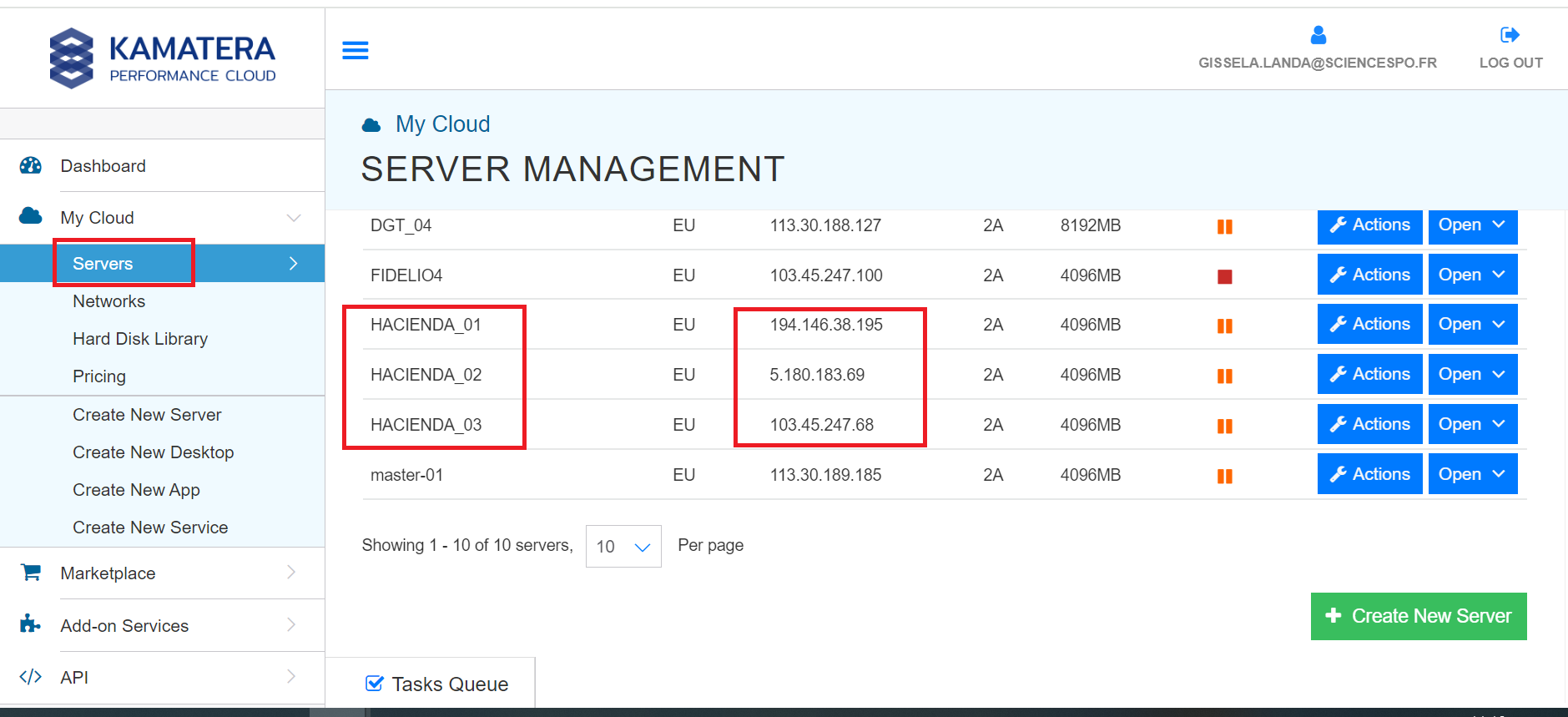
2.2 Enable and disable server(s):
To be able to use the Kamatera server, we must first
"enable"it and when we no longer use it"disable"ityou must click on
"Actions"and"Resume"to enable.
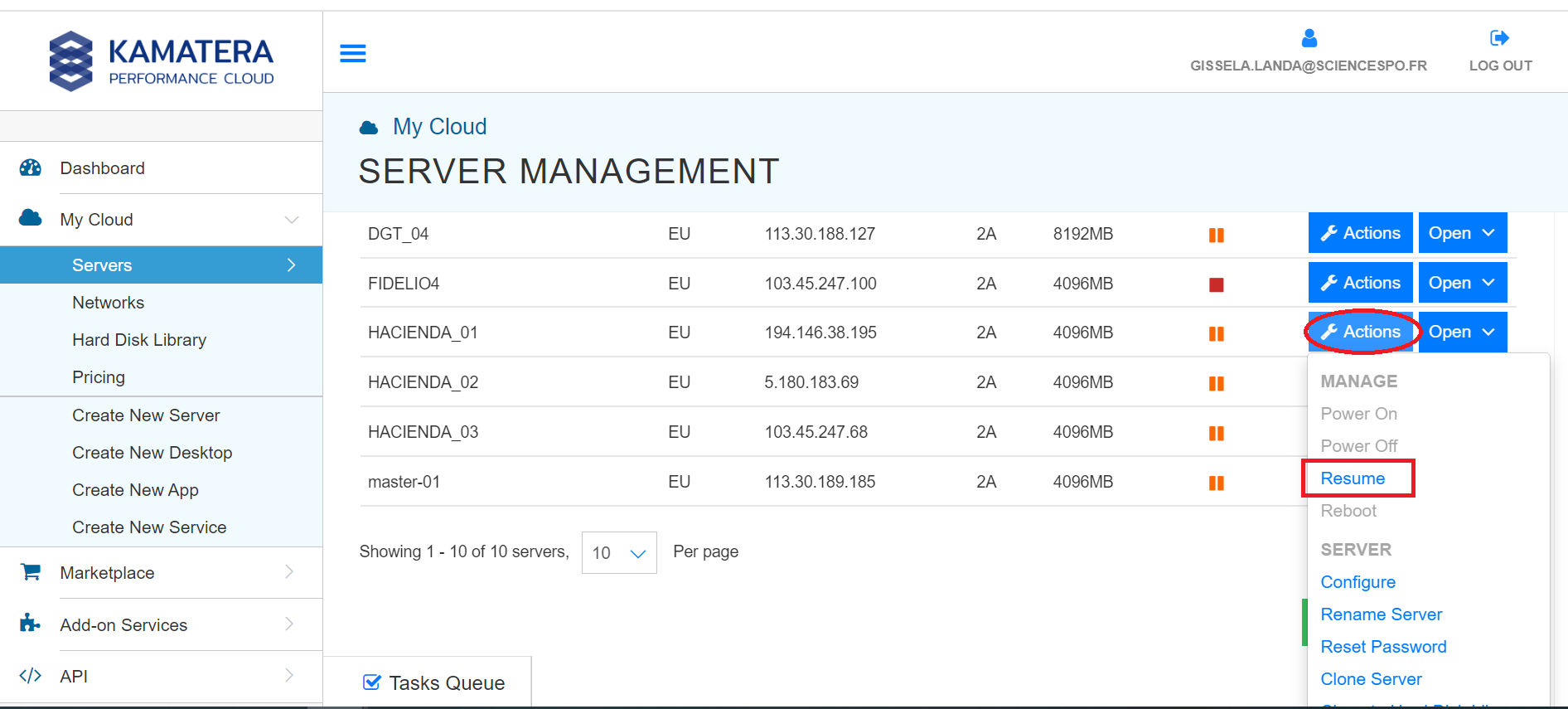
you must click on
"Actions"and"Suspend"to disable.Don’t forget this because otherwise we continue to pay for the use of the server
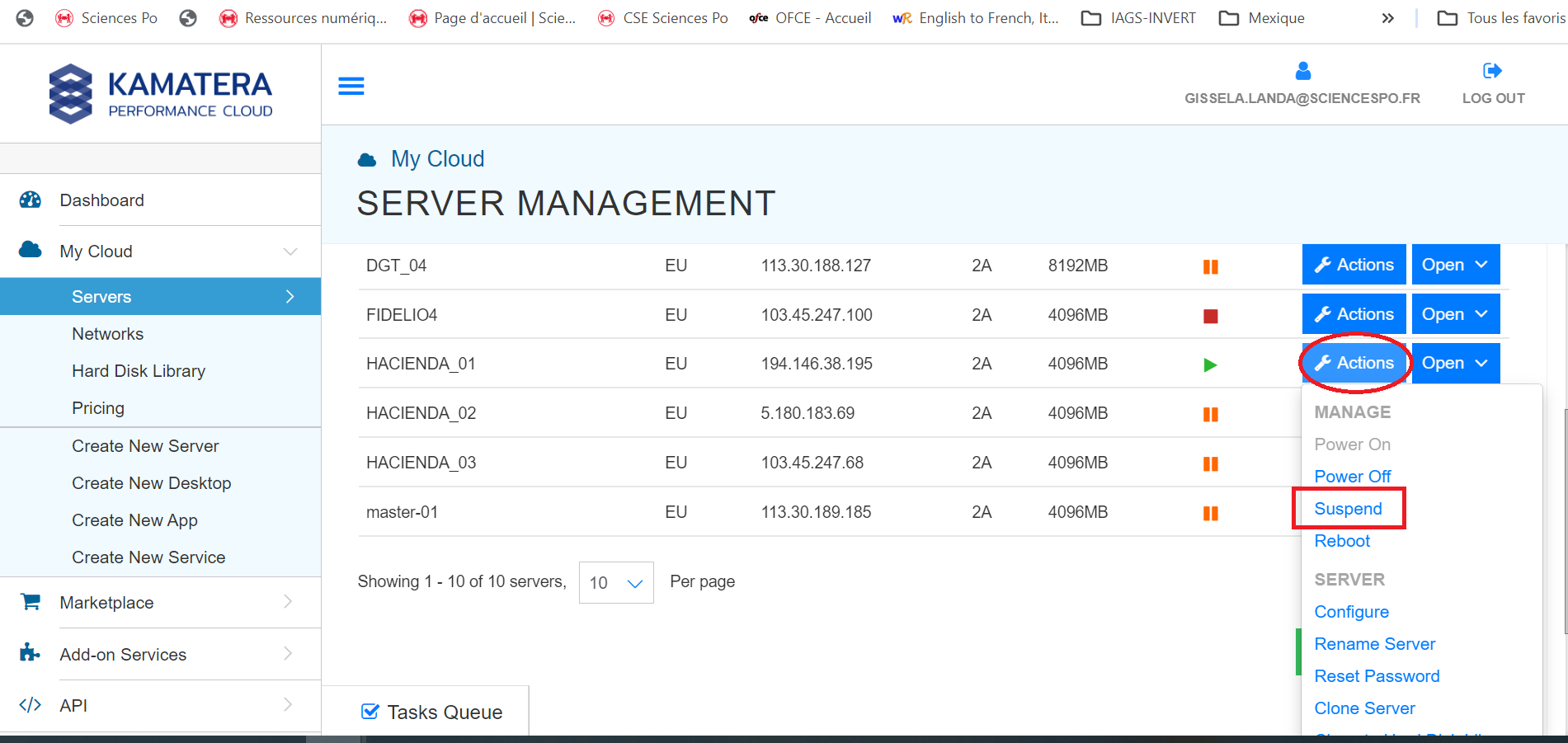
- This activation procedure is necessary in order to be able to use the server in the remote desktop connection of your computer
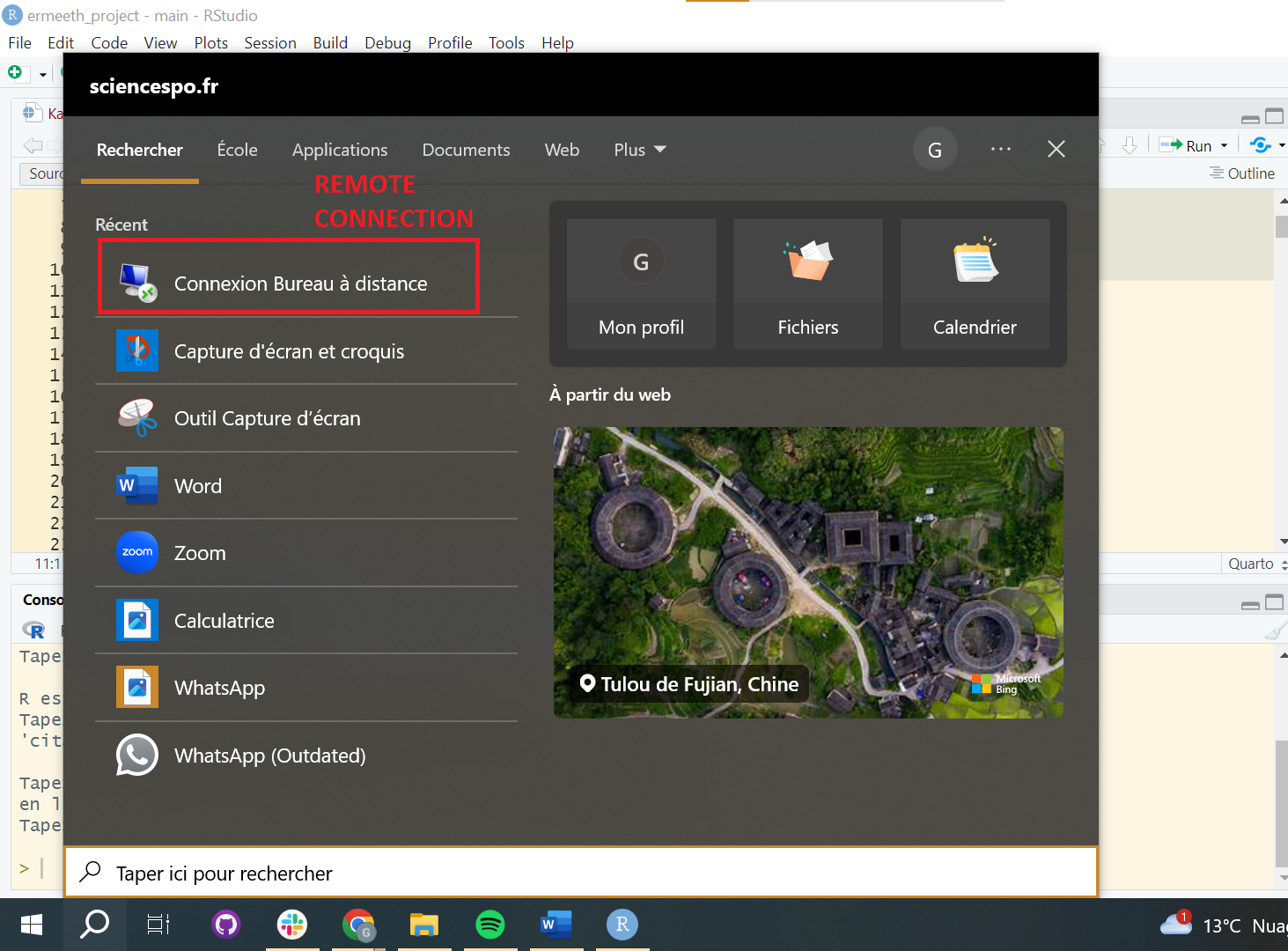
2.3 Connection - Option 1: Remote desktop Connection (RDS):
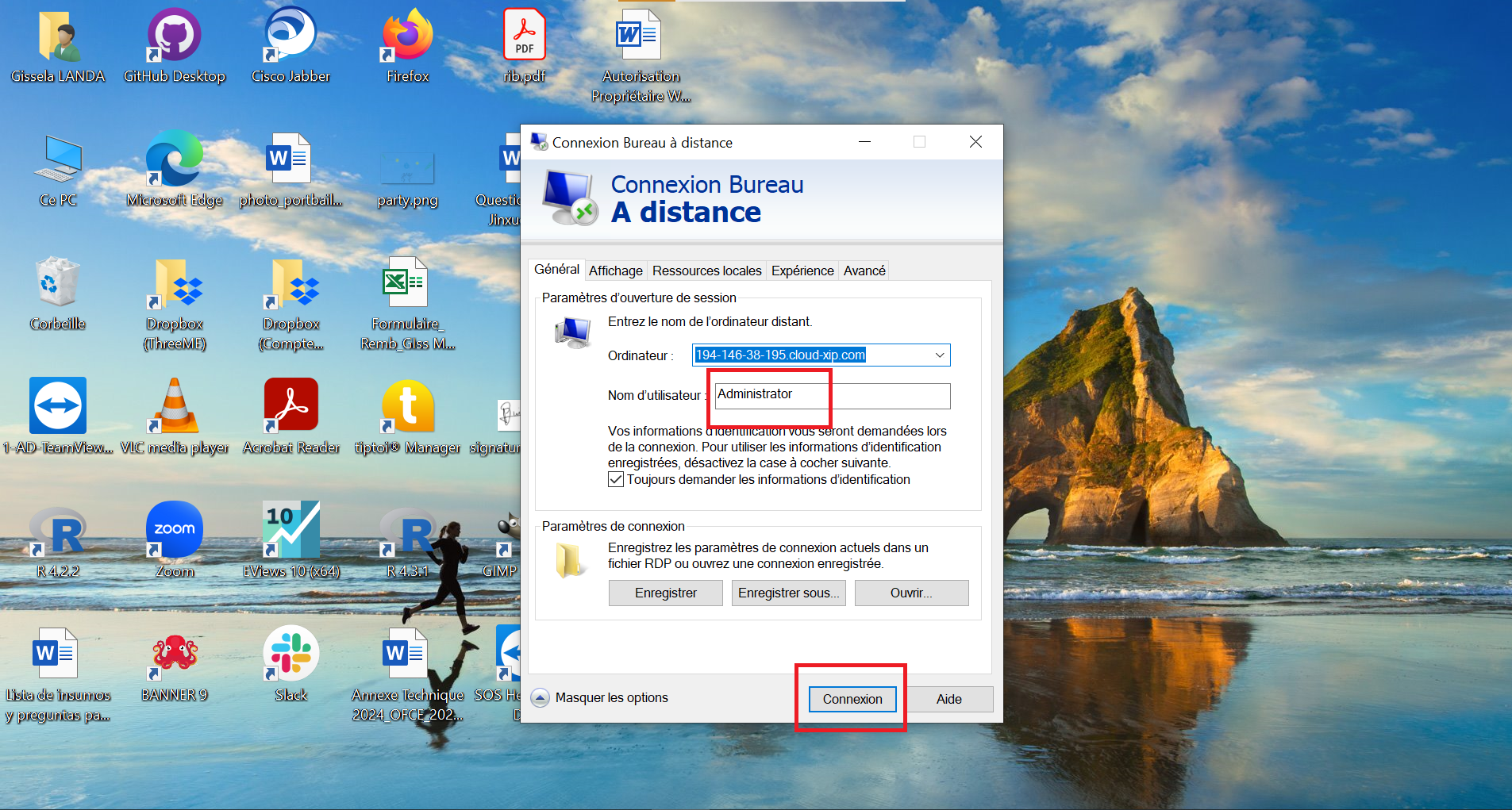
- In the right Windows bar you have to search for “remote desktop connection”
- Indicate the number of the server you wish to use, there are 3 servers.
Server name: HACIENDA_01 Computer: 194-146-38-195.cloud-xip.com
Server name: HACIENDA_02 Computer: 5-180-183-69.cloud-xip.com
Server name: HACIENDA_03 Computer: 103-45-247-68.cloud-xip.com
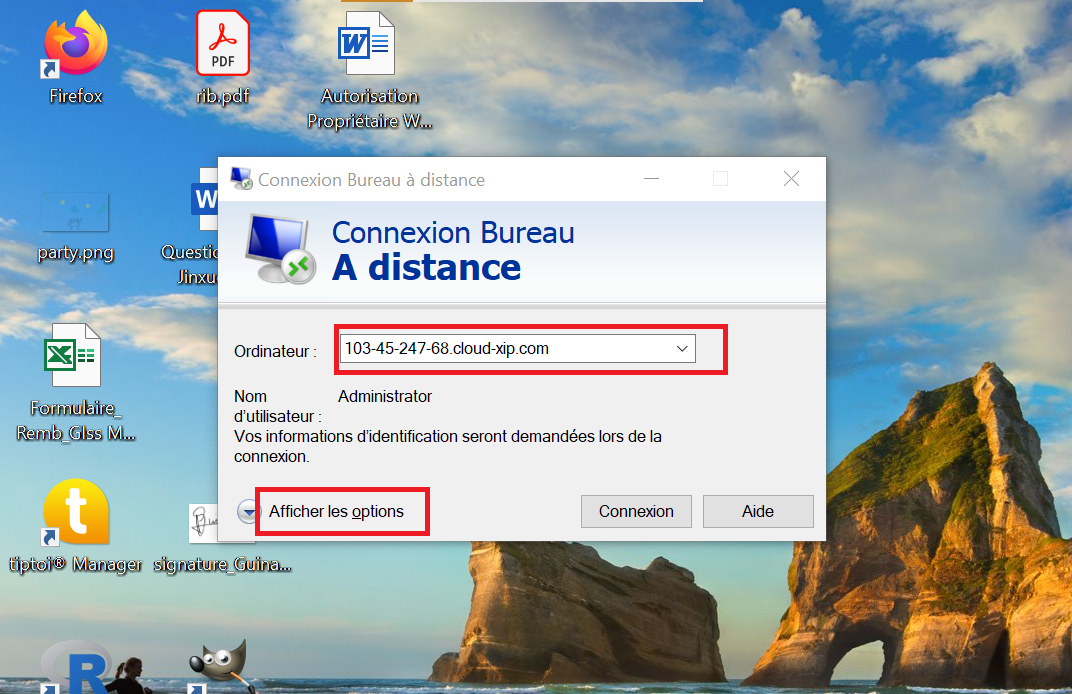
- View the list of options and log in as
"Adminitrator"and click on"connection"
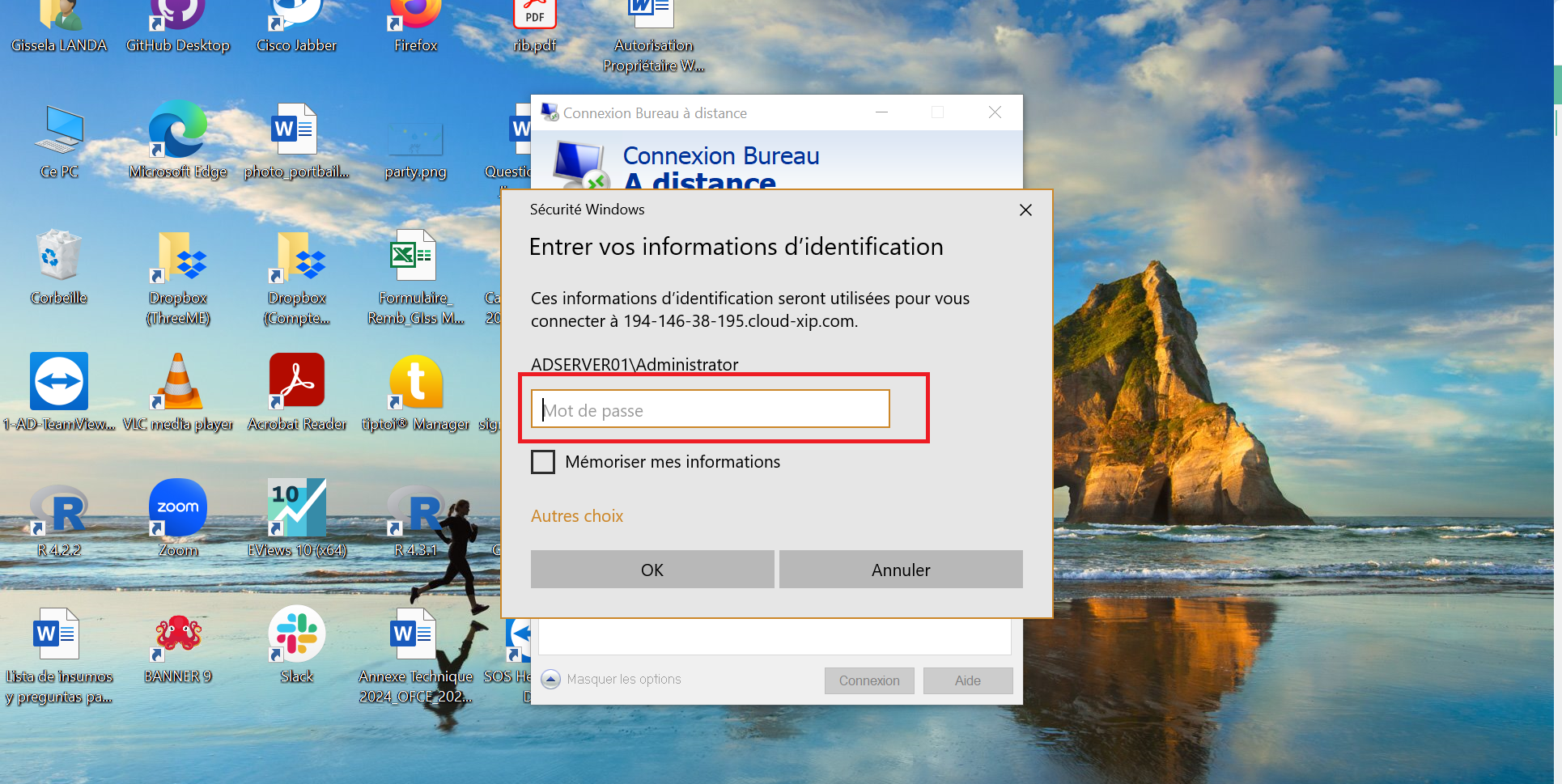
- Enter the password with a copy/pasted of the kamatera.txt file. The document is located in the shared Google Drive. Here is the access
"ThreeME - Mex - Hacienda\Shared_With_Hacienda\Administration"
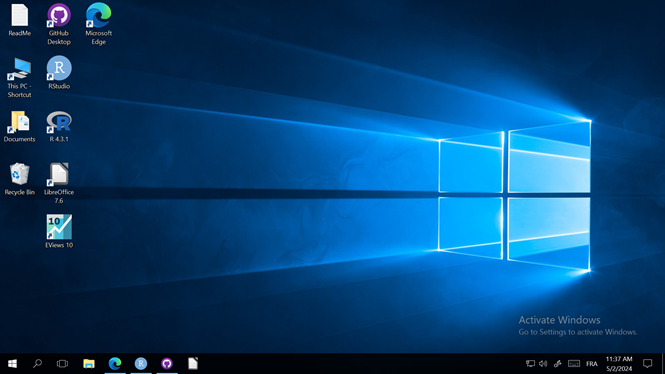
- You are connected to the Kamatera server
2.4 Connection - Option 2: Connection in Kamatera
- To connect directly to the Kamatera website server:
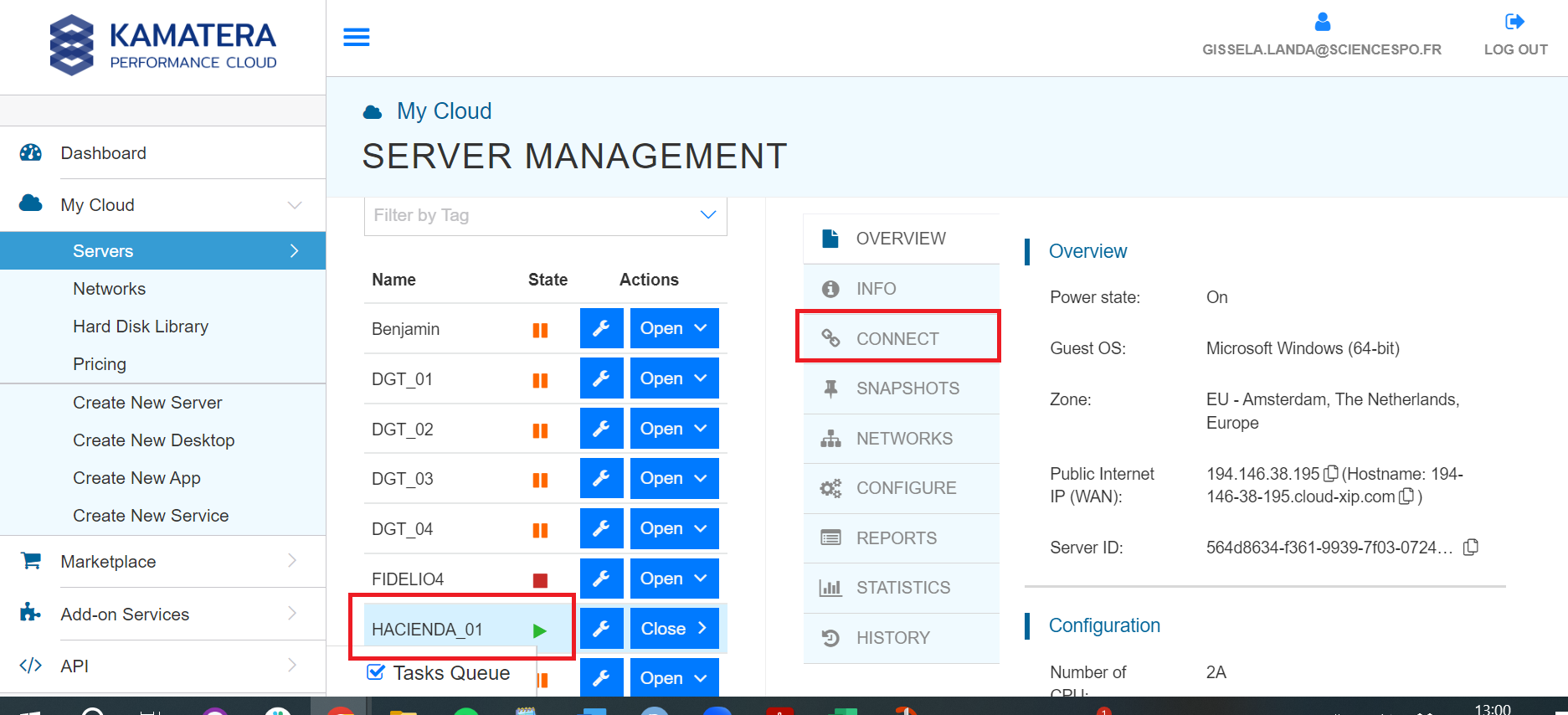
- You must click on
"OPEN"
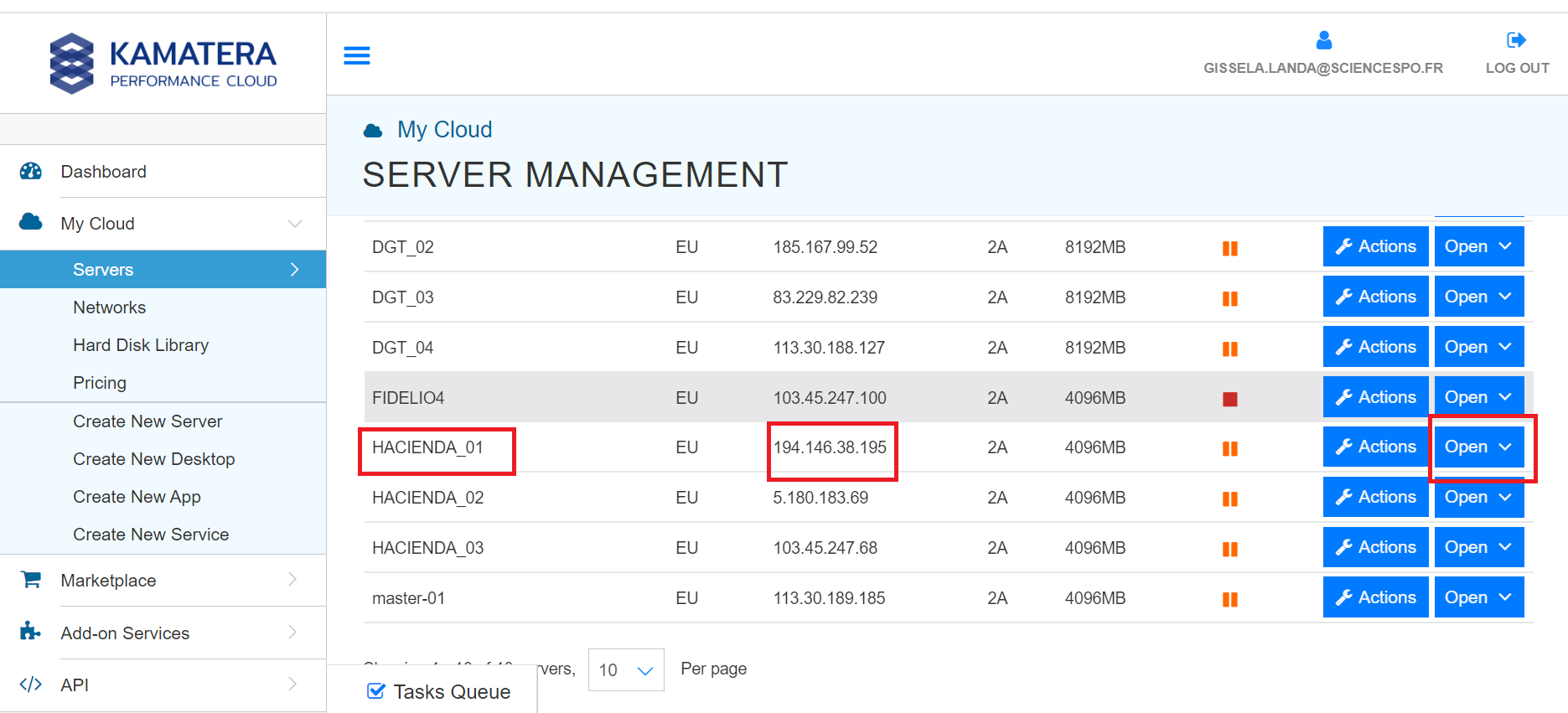
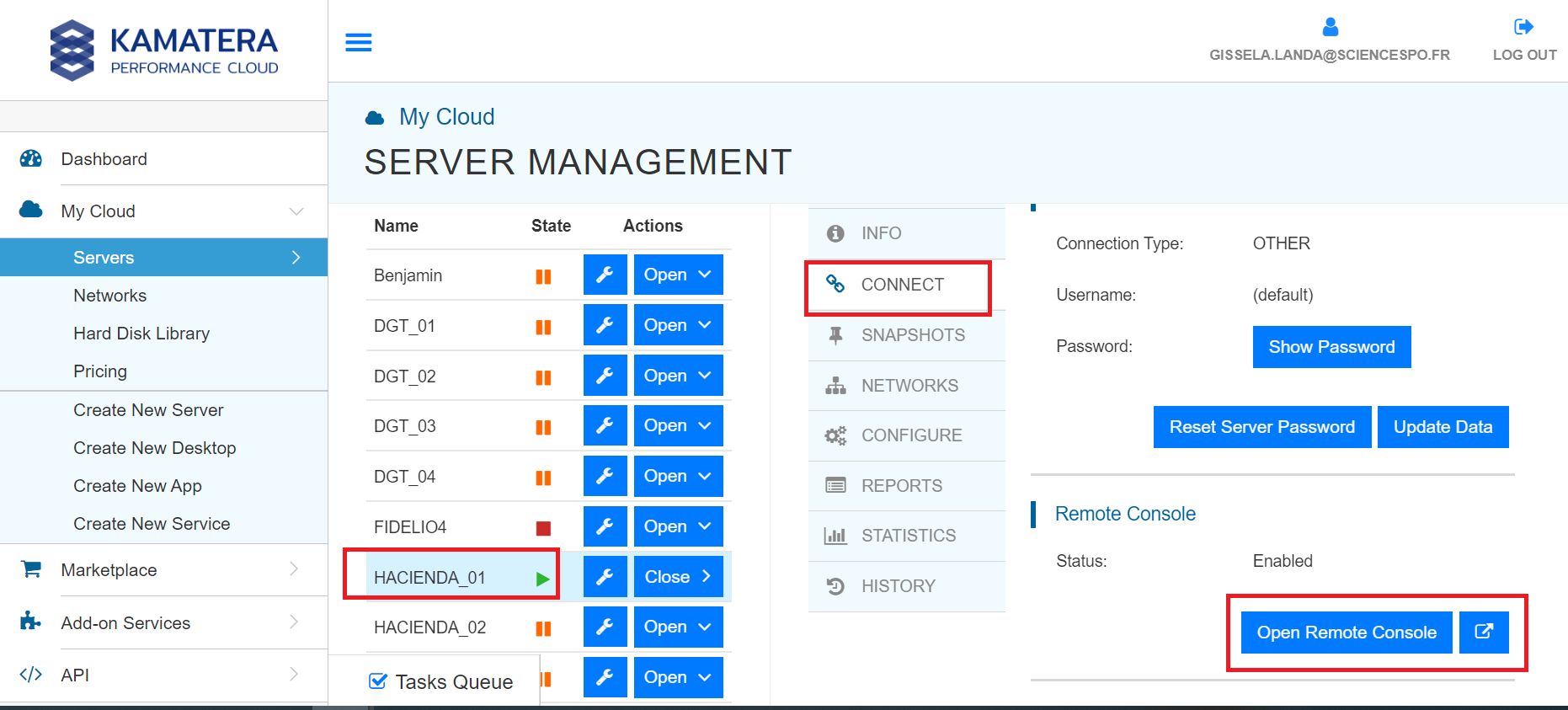
- Them click on
"CONNECT"
- Them click on
"OPEN REMOTE CONSOLE"
- Log in with password: Write the password that is in the kamatera.txt file. The document is located in the shared Google Drive. Here is the access
"ThreeME - Mex - Hacienda\Shared_With_Hacienda\Administration"
- if the administrator icon does not appear click on “send ctr+alt +del”
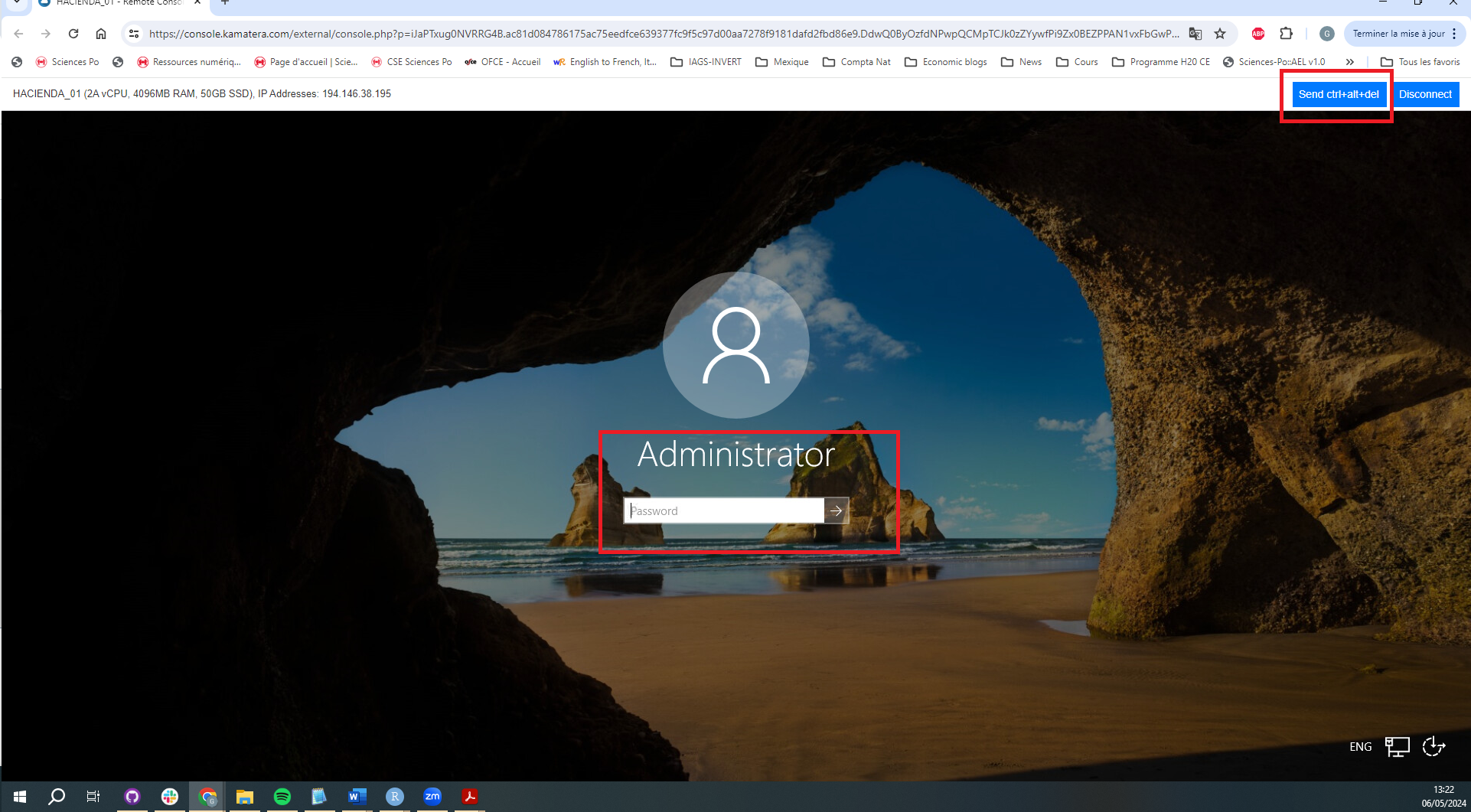
- You are connected to the Kamatera server